 Alert Correlation Policy

Alert correlation is the process of grouping related alert events into a single, high-level incident. AIOps correlates the alert events based on alert correlation policy.
Alert correlation policy settings can be done using the following methods:
- Hybrid Correlation
- Similarity Correlation
To define the correlation policy,
- Select Configuration tab in AIOps
- Select Alert Correlation Policy on the left pane by expanding Alert Correlation
- Correlation Methods screen will appear displaying Hybrid and Similarity correlation
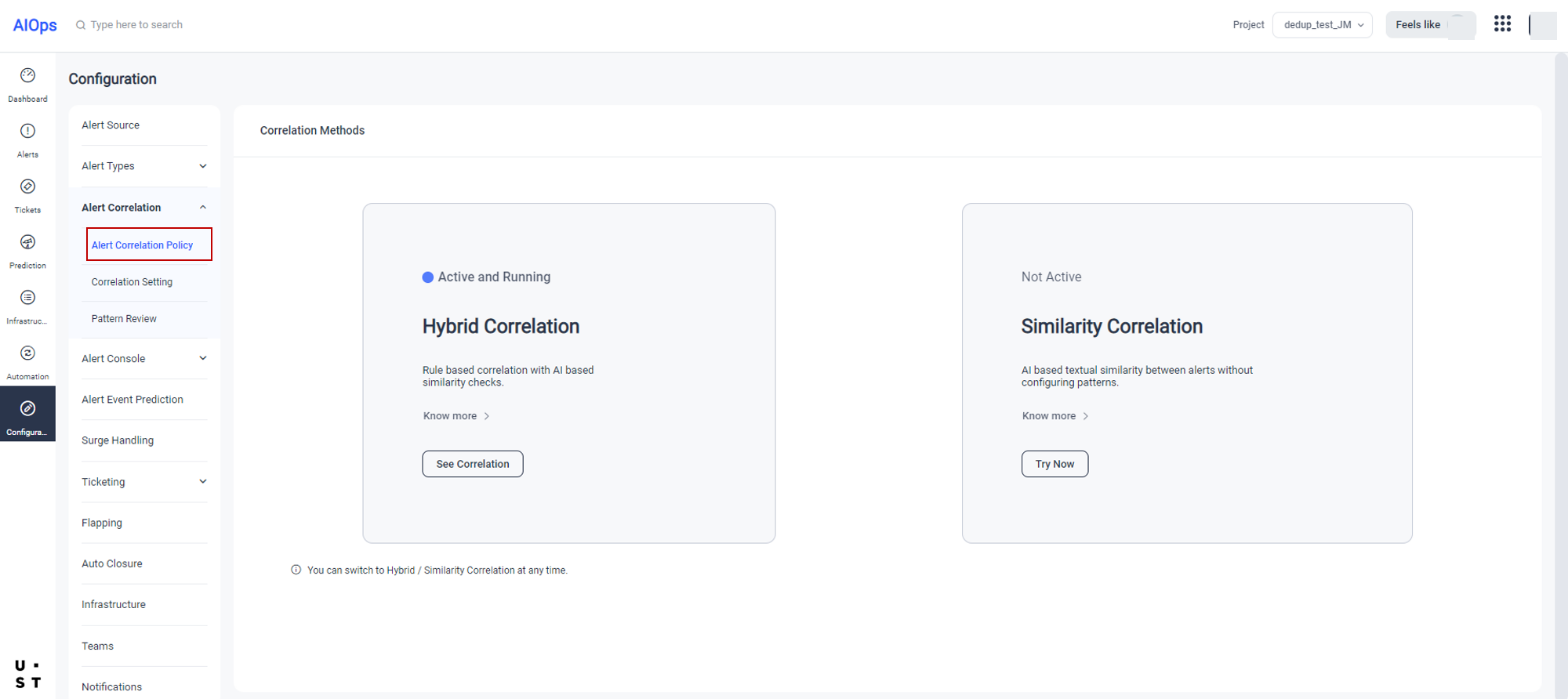
Currently active policy will have a radio button enabled showing “Active and Running”.
Hybrid Correlation
Hybrid Correlation lets you configure the correlation process using rules and AI powered textual similarity checks on alert attributes. If you require a highly customized correlation logic and can maintain a well-designed set of rules, this method can be used.
To set rules for hybrid correlation, select See Correlation button corresponding to hybrid correlation.
On clicking See Correlation button hybrid correlation will appear.
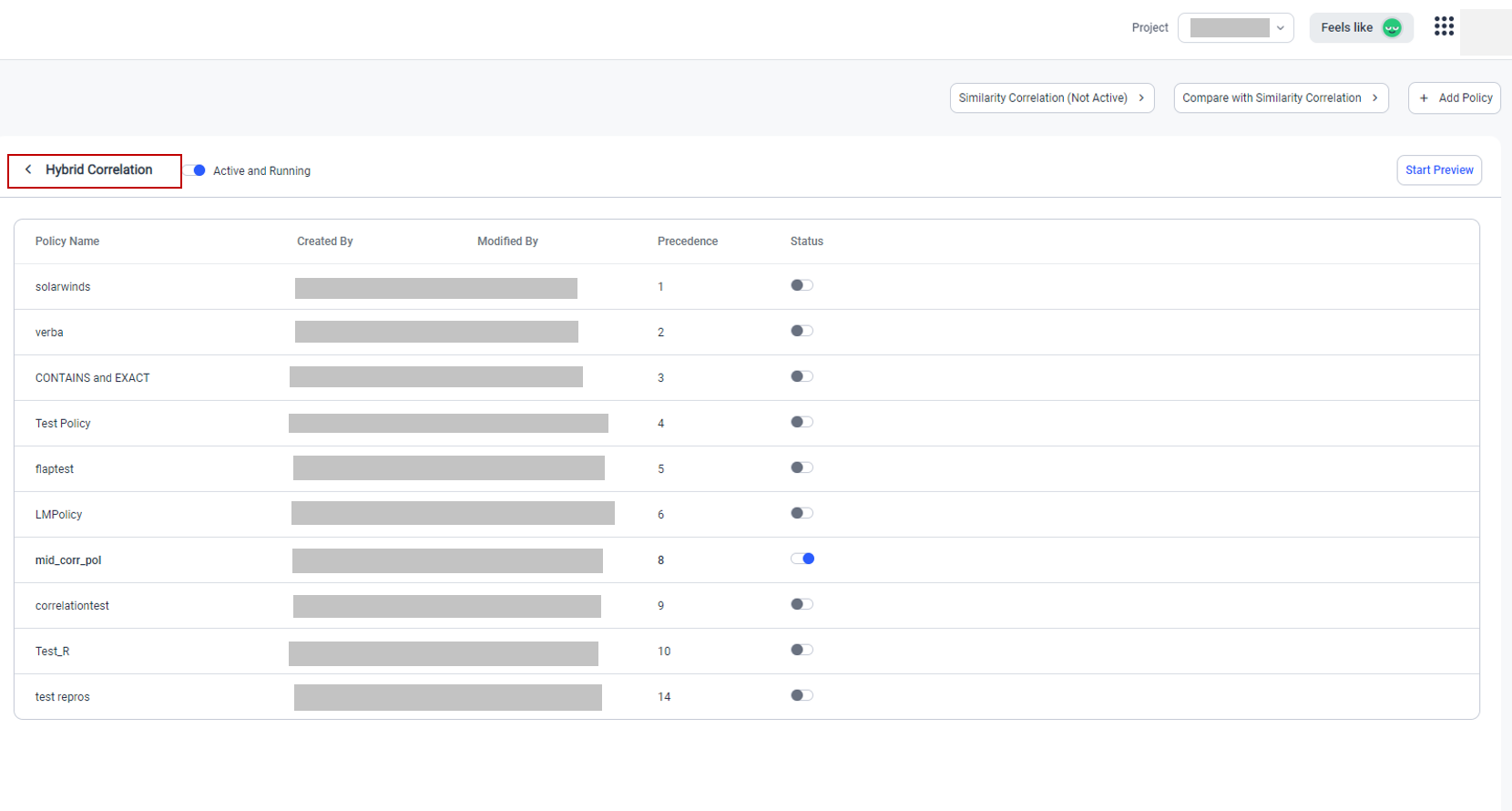
All the created policies will be listed.
You can switch to Similarity correlation by selecting the Similarity Correlation option. You can compare Hybrid correlation with Similarity correlation by selecting the Compare with Similarity Correlation option. Select Start Preview option, to view the preview.
To add a new policy, click on Below screen will appear.
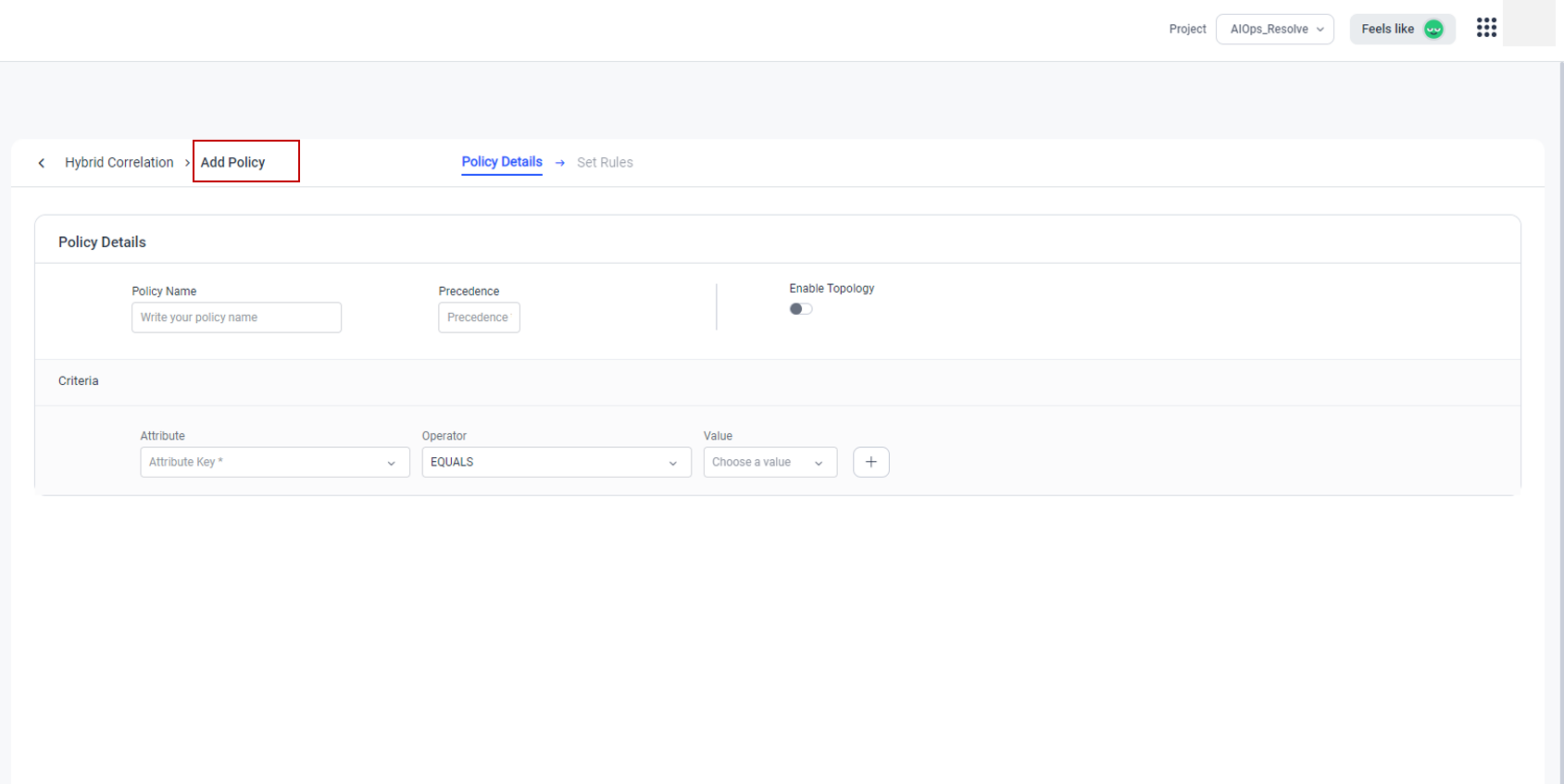
You can add policy details from this screen. Define the correlation policy as explained below:
|
Field Name |
Description |
|
Policy Name |
This field allows you to enter the Policy Name |
|
Precedence |
Precedence field allows you to set priority to the policies that you are adding. |
|
Attribute |
This field allows you to select the attribute that is to be mapped against a value to consider for correlation. You can select any of the available attributes from the drop down. You can add multiple attributes against a single policy name by clicking the |
| Operator | This field allows you to select the 0perator for mapping the selected attribute with value |
|
Value |
This field allows you to either enter or select the value based on the attribute selected. |
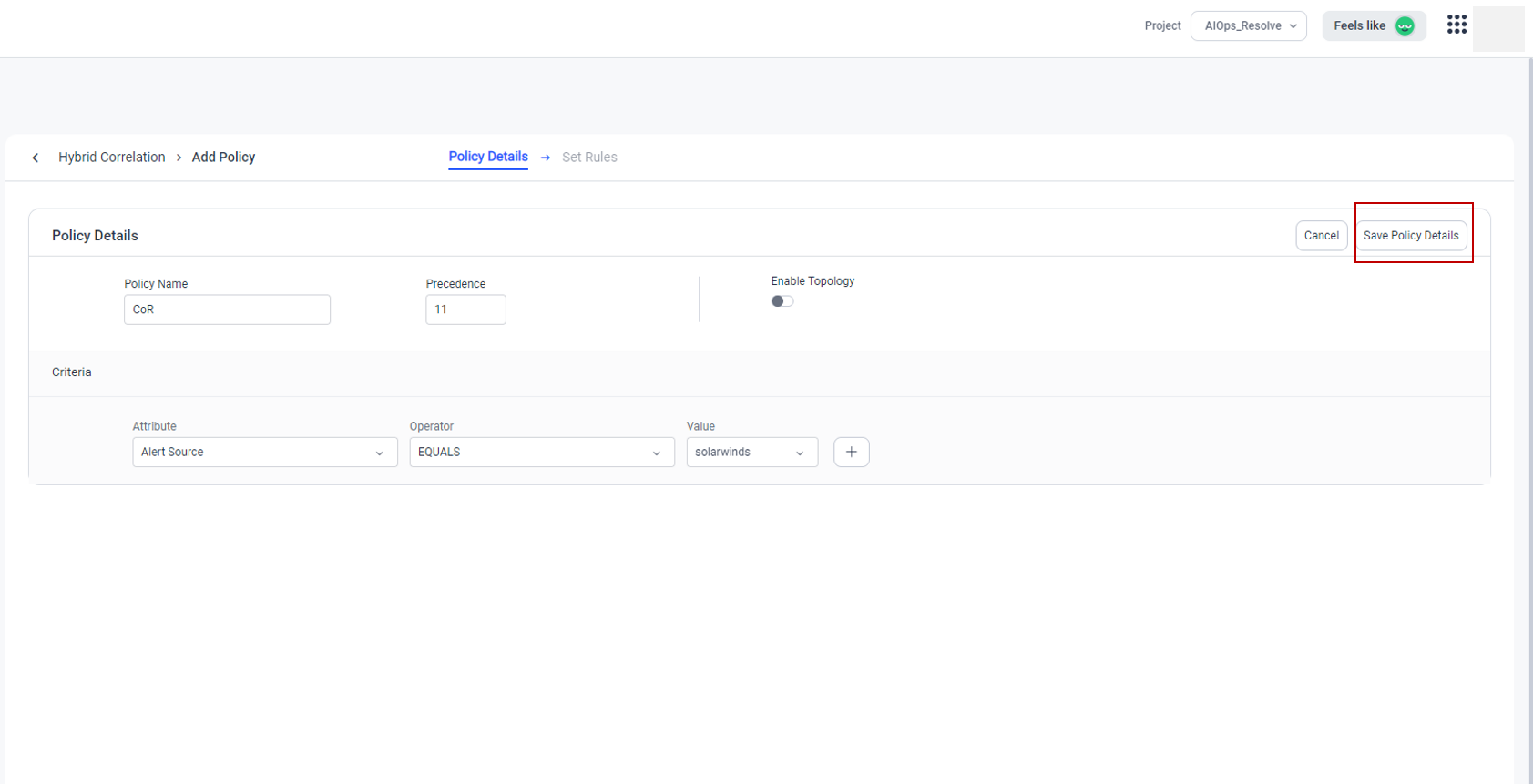
Click on Save Policy Details button. Save Policy Details pop up will appear.
On selecting Save and Exit option from the popup, the created policy will get saved and listed in the Policy listing screen. You can edit the policy from that screen later.
Click on Save and Continue button. Set Rules option will get enabled. You can set specific rules from this screen to further refine the corresponding policy.
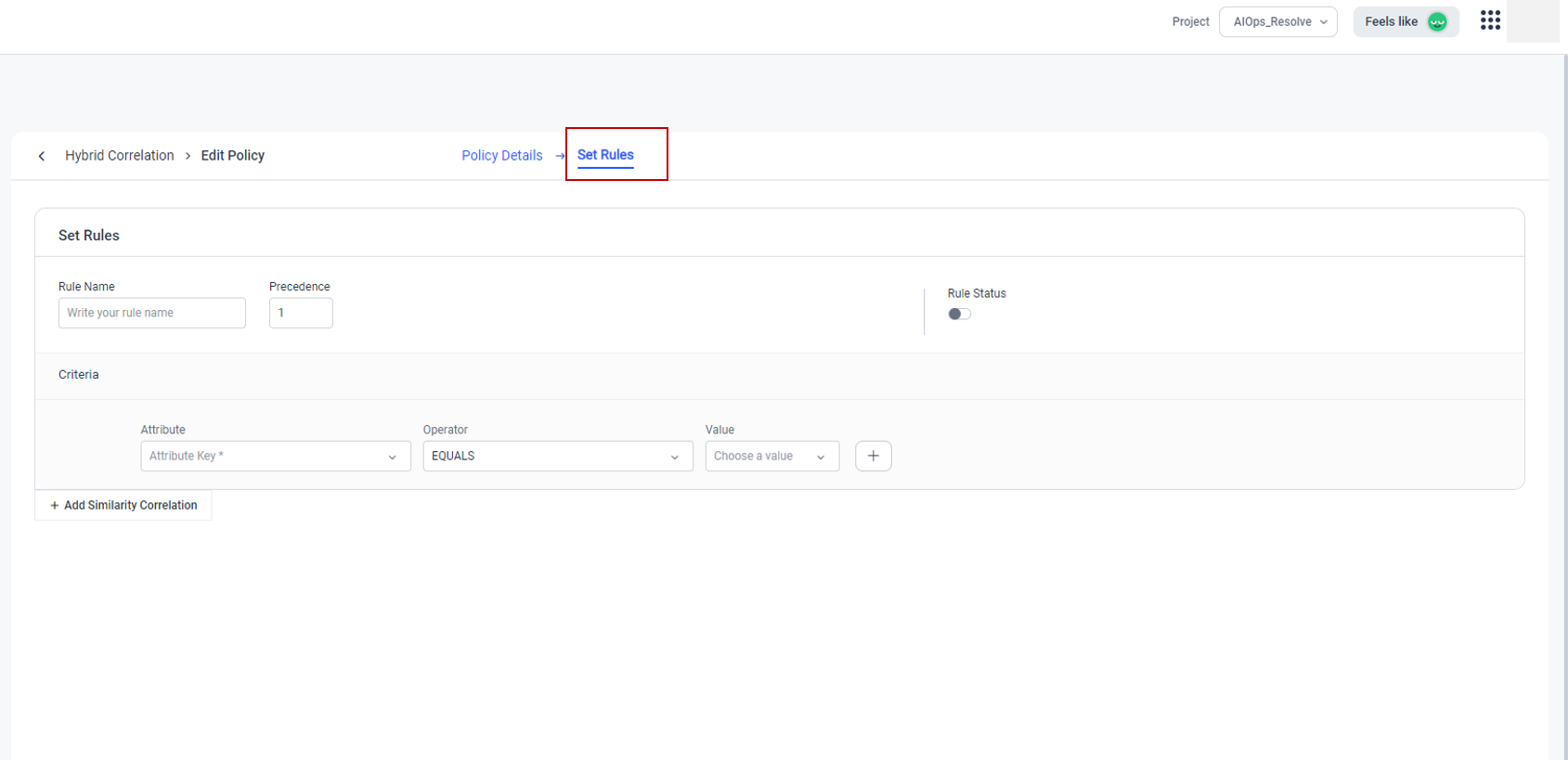
You can define the rules for the correlation policy as explained below.
|
Field Name |
Description |
|
Rule Name |
This field allows you to enter the Rule Name. Duplication of Rule Name within a policy will show an error message. |
|
Precedence |
Precedence field allows you to set priority to the created rules. Precedence will be given automatically to the rules on the chronological order of their creation. |
|
Rule Status |
This option allows the user to enable or disable the created rule. |
|
Attribute |
Attribute that is to be mapped against the created rule. You can select the attribute from the available list. Multiple attributes can be mapped against a single policy by clicking the |
|
Operator |
This field allows you to select the Operator for mapping the selected attribute with value. |
|
Value |
This field allows you to either enter or select the value based on the attribute selected. |
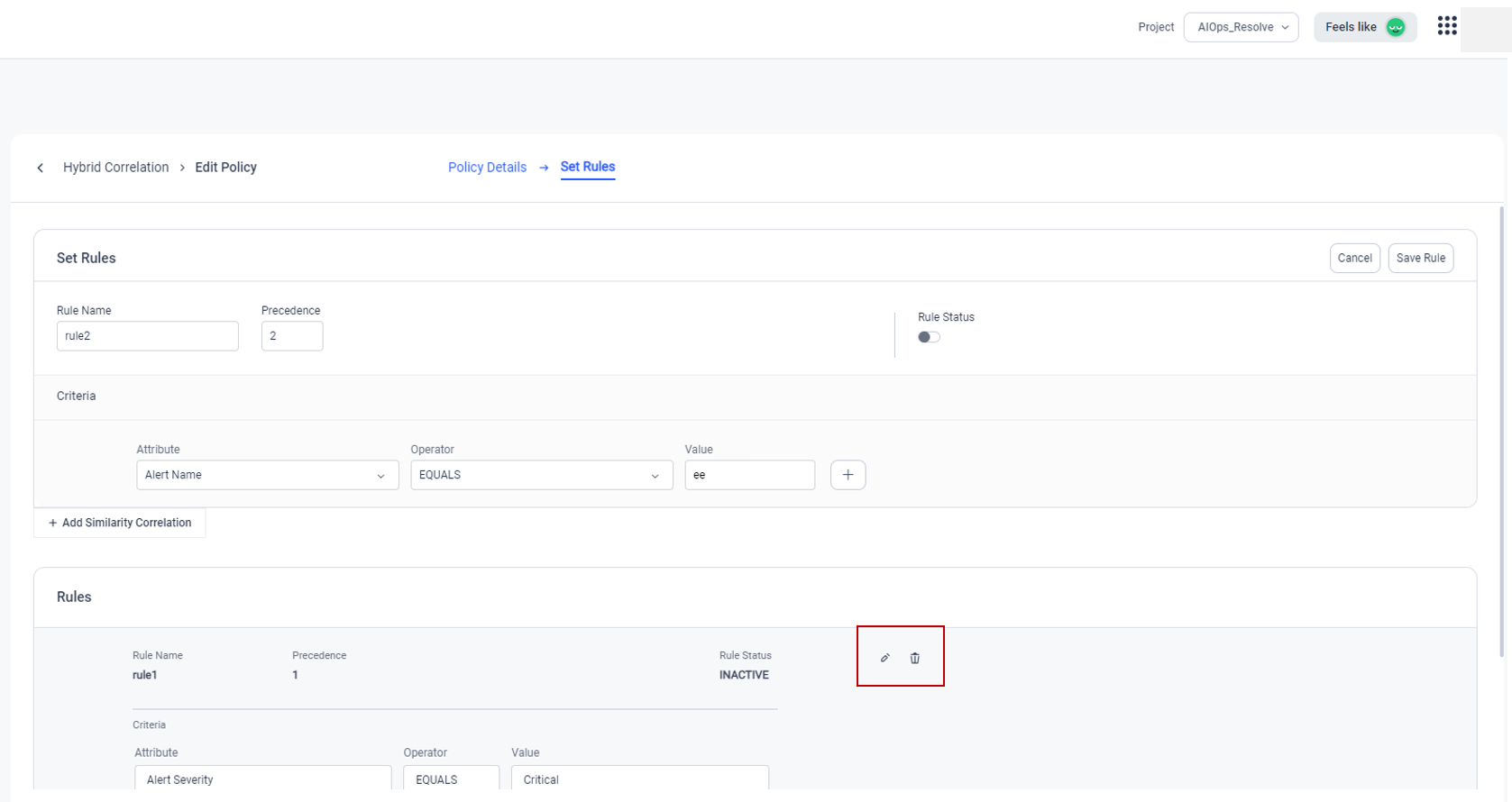
To save the rule click on Save Rule option.
To add Similarity Correlation, expand  and select the required attribute and corresponding Operator.
Operators supported in AIOps are, Identical, Empty and Similar.
- Identical looks for same values for the field specified
- Empty looks for empty values for the field specified
- Similar looks for semantically similar values for the field specified
To add more similarity correlation, click on the  icon.
icon.
To enable comparison of attributes that are of data type ‘LIST’, AIOps supports two more operators 'Identical List' and 'Similar List' while configuring the Similarity Correlation under Hybrid Correlation setting.
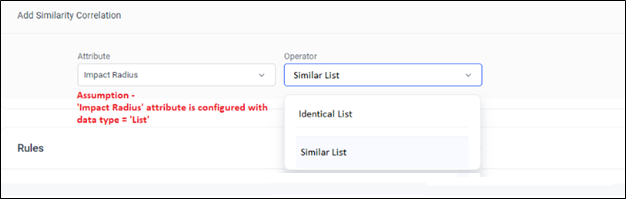
Note:
- The ‘VALUE’ field will not be available for these operators.
- AIOps also supports this operation on custom attributes which are setup with data type ‘LIST’ via API configuration.
- For customers, using ‘senseParams’ mappings at IHub channel a custom mapping needs to be setup for the mappings that uses ‘requestJson’ to read LIST fields. Refer here for Sample channel config for LIST fields.
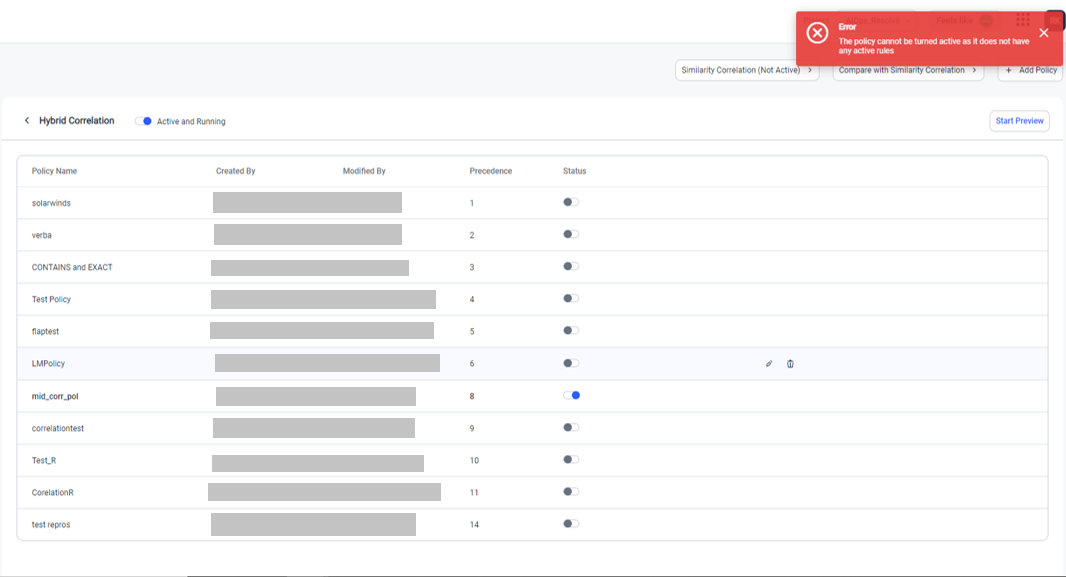
User can edit/delete any created rule by selecting the corresponding edit/delete option. User can activate or disable the rule with the Rule Status toggle button. Click on Save Rule button, the policy will get reflected on the Policy listing screen. Once all the rule settings are done, user can activate the policy by selecting the Status option from the Policy listing screen.
To activate a policy, at least one rule must be activated. Otherwise an error message will be displayed as shown below.
Similarity Correlation
To correlate alerts based on its similarity with respect to its fields, you can define the Similarity Correlation rules.
Similarity Correlation lets you easily configure the correlation process without any rules. This method uses AI algorithms to determine correlation. Alerts are correlated into alert clusters based on AI powered textual similarity checks on selected alert attributes.
To define Similarity Correlation, click on the See Correlation button corresponding to Similarity Correlation from the Correlation Methods Screen.
Similarity Correlation screen will appear, where you can correlate the fields.
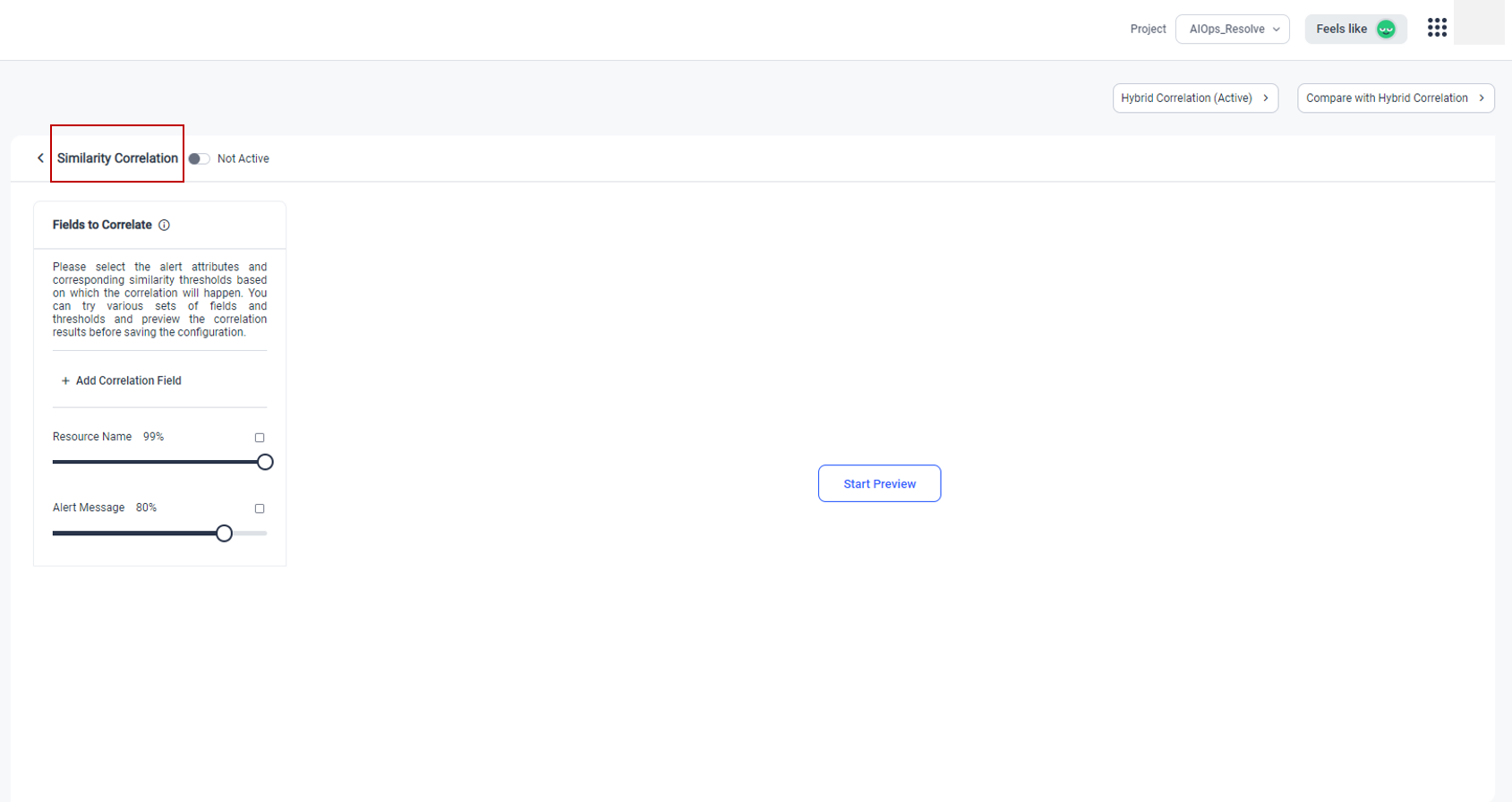
Selected alert attribute fields and corresponding similarity thresholds based on which the correlation will happen, will be displayed in the Similarity Correlation screen.
Similarity correlation is driven by AI algorithms which check for textual similarity. So, this similarity check works best on alert attributes with sentence-like values.
You can switch to Hybrid correlation by selecting the Hybrid Correlation option. You can compare Similarity correlation with Hybrid correlation by selecting the Compare with Hybrid Correlation option. Select Start Preview option, to view the preview.
To add new fields, click on Add Correlation Field and select the required alert field.
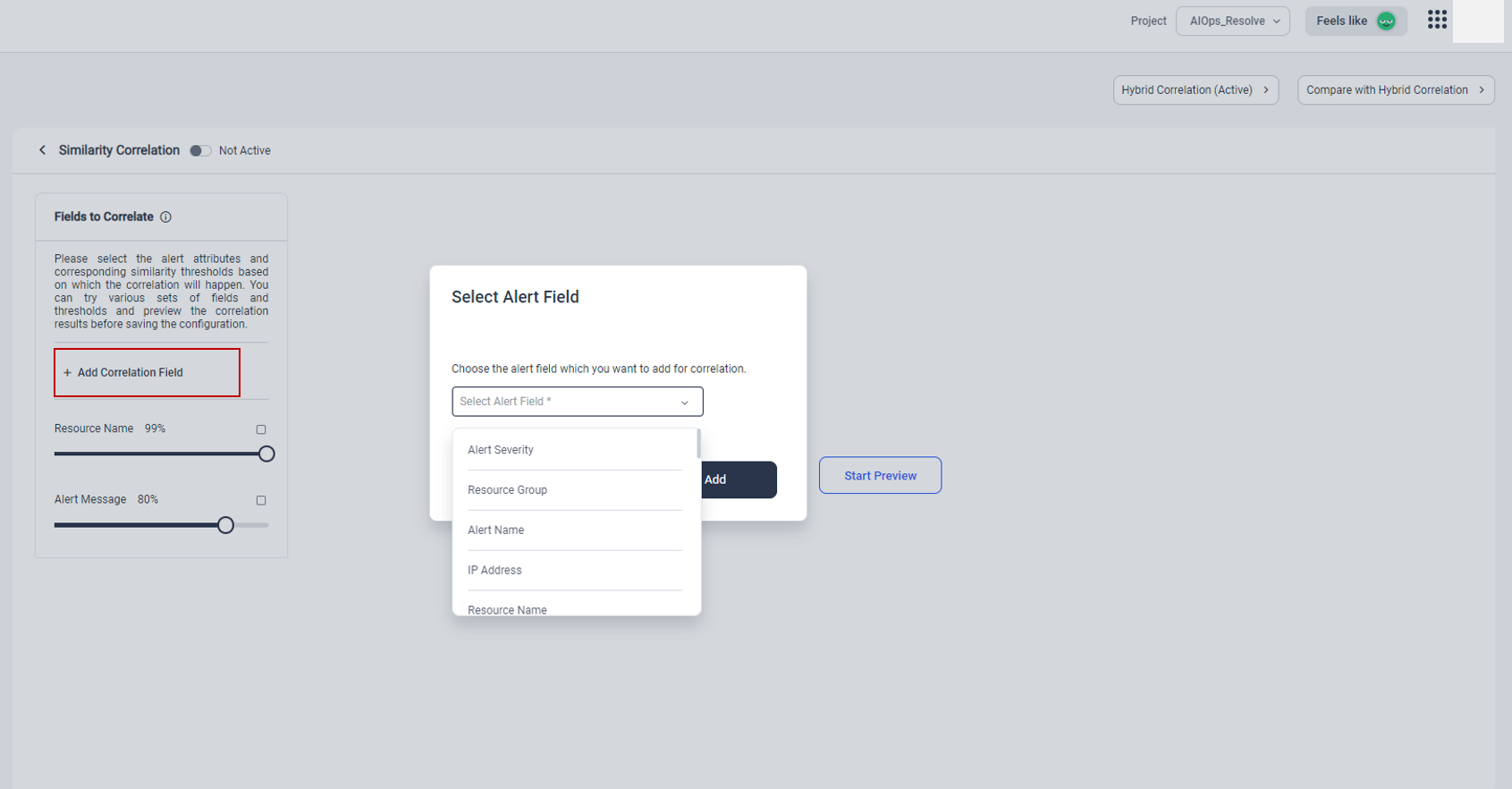
Specify the percentage of similarity to be checked for the field. Setting the threshold at 99% or higher will result in checking for identical values.
Correlation rule check will be based on alert properties at the time of correlation. This may not be properties of the first alert event. If the properties of the alert change as more alert events are merged, the alert will not be moved from its current cluster. From Alert Cluster Timeline, user can view the alert properties of the event at the time of correlation.
Similarity check in Hybrid correlation will be based on the latest attribute values on the de-duped alert.
Similarly, in AIOps Similarity correlation method, correlation will be based on the latest attribute values on the de-duped alert.
Copyright © 2025 UST . All Rights Reserved.