 Auto Resolution of Tickets
Manage Auto Resolutions
Auto Resolution automates IT workflows for fast and efficient resolution of tickets and requests using AI and automation capabilities.
Key benefits of Auto Resolution:
- Immediate and accurate ticket resolution
Cost-effective way to automate repetitive tasks - Improved IT predictability
- Faster IT problem resolution
- Increased IT personnel productivity and efficiency by eliminating mundane repetitive work
- Reduced IT operations costs due to savings from man-hours
The tickets in SmartOps AIOps can be resolved using automation stories created in SmartOps Core Platform. Auto Resolution detects the intents from incoming tickets, extracts related data from the ticket and use that data to run an automation story for resolving the issue mentioned in the ticket. The intents identified are mapped to automation story which contains the workflow to resolve the issue.
Creating Auto Resolution
Go to Automation tab and select Manage Auto Resolutions.
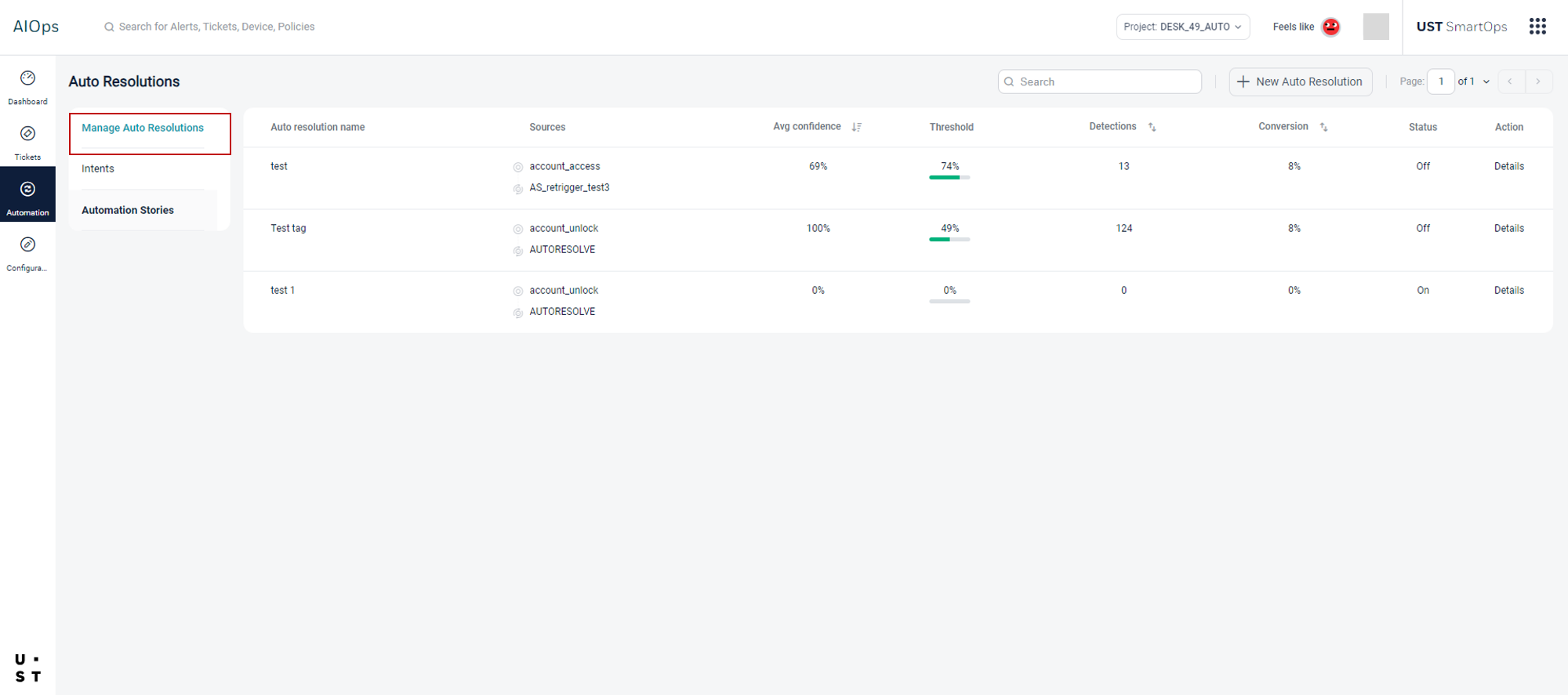
Select New Auto Resolution button. New Auto Resolution screen will appear.
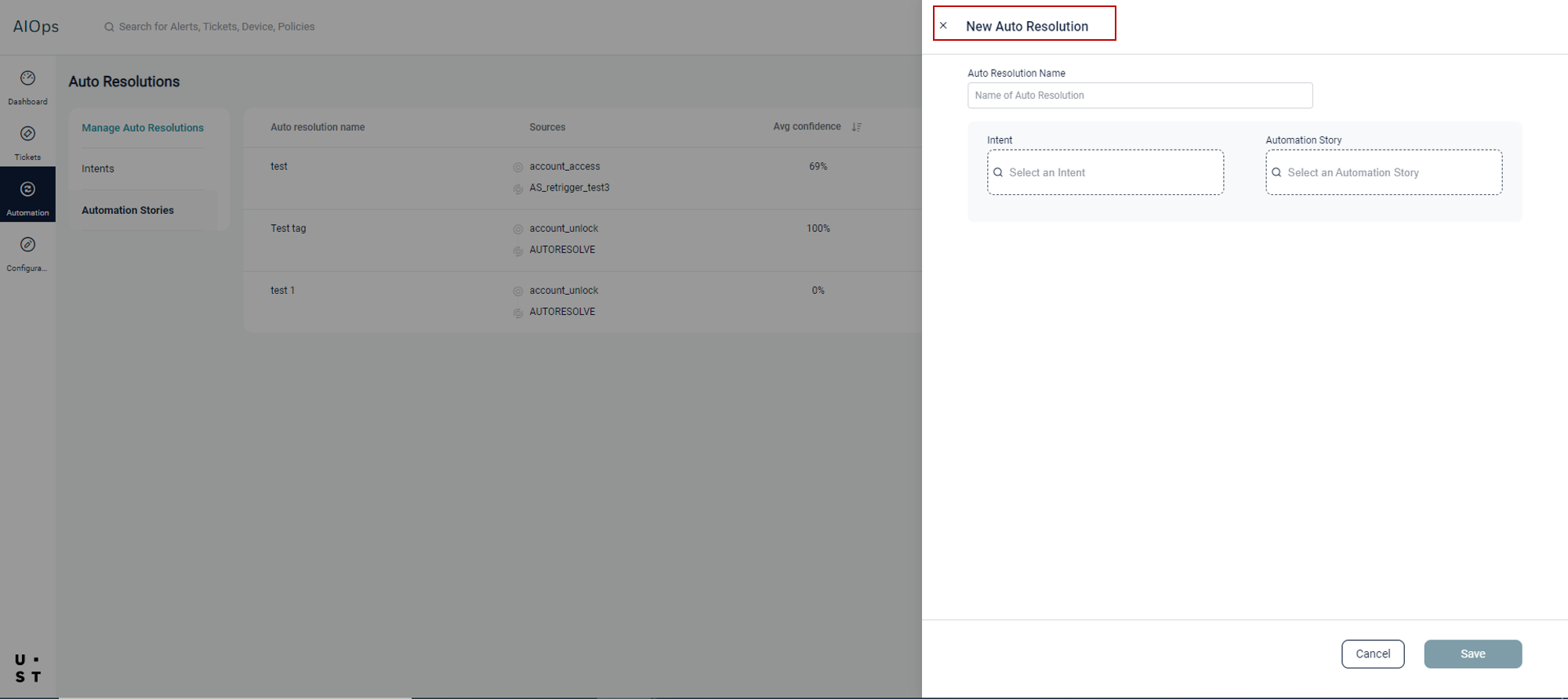
Here you need to select an intent and automation story and map the extracted ticket fields to the automation story input fields. On saving, the new resolution will get listed in the Manage Auto Resolutions screen.
Note : Only the Automation Stories with Automation Story Tag defined in Project Configuration, will be displayed to users in Automation/Auto Resolution screens.
Refer Defining Project Configurations to know more about assigning Automation Story Tag
The initial settings to list the intents and the automation stories in the Auto Resolution section in AIOps will have to be done in various SmartOps components like Conversation Designer, Creator Studio and Rule Engine. Multiple AI models to identify ticket categories and ticket intents are configured in the SmartOps Conversation Designer. A business rule is configured in SmartOps Rule Engine, to select the appropriate intent identification models for different ticket categories. An automation story is configured in SmartOps Creator Studio with the required workflow for ticket resolution. The Automated Resolutions which allow users to select and execute an Automation Story will use Automation Story 2.0, providing new automation capabilities and better reusability. Once the automation story configuration is completed, the final steps for setting up an Auto Resolution - mapping an Auto Resolution scenario to a SmartOps intent and SmartOps automation story, setting up thresholds for confidence scores and enabling auto execution, will be done in AIOps.
AIOps runs intent detection on incoming tickets to detect the nature of the ticket as well as extract related information. If an automation story to resolve the detected ticket intent has been configured, AIOps uses the extracted information to run the automation story and resolve the ticket. If no intent has been detected or if the detected intent has not been configured for automatic resolution, the system will handle it as a normal ticket.
Editing Auto Resolution
Go to Automation tab and select Manage Auto Resolutions. Existing Auto Resolutions will appear in this screen.
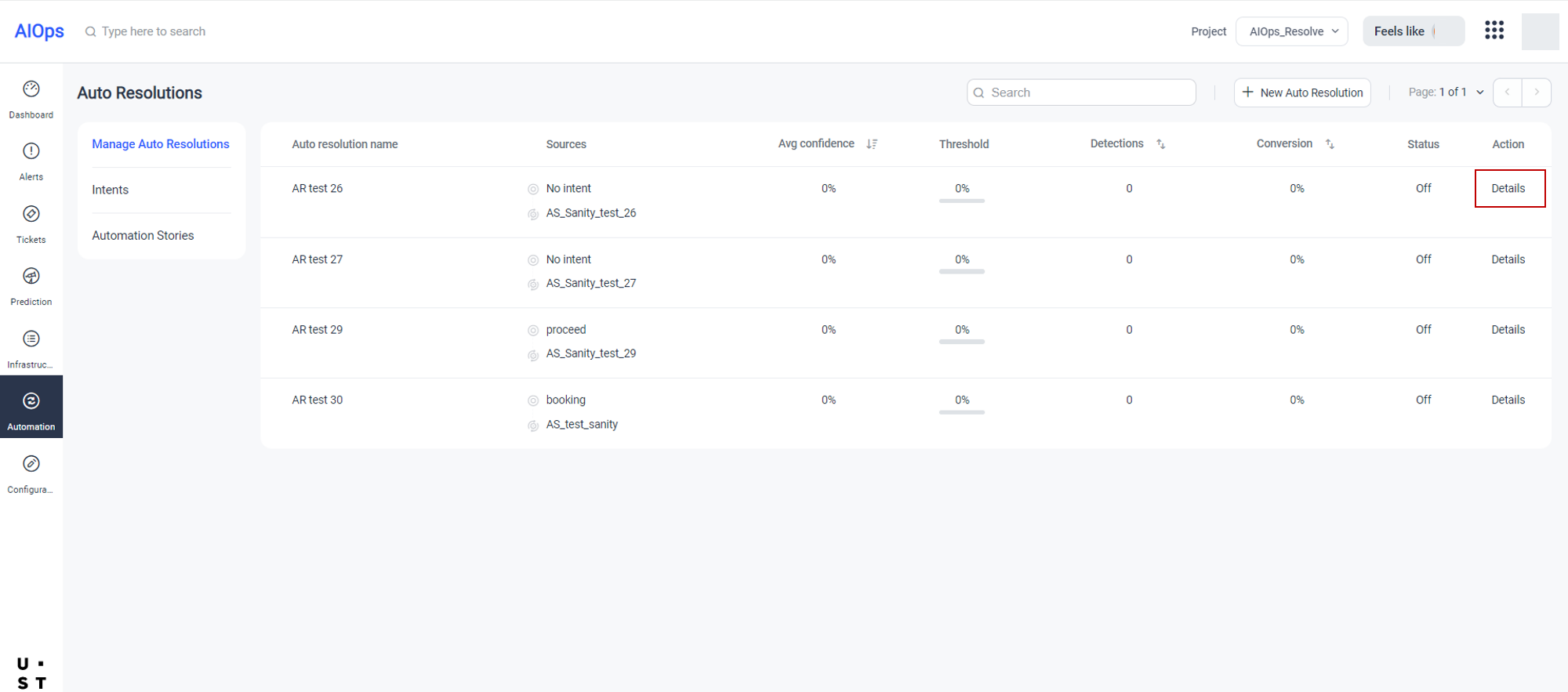
Select Details field corresponding to the Auto Resolution to be edited.
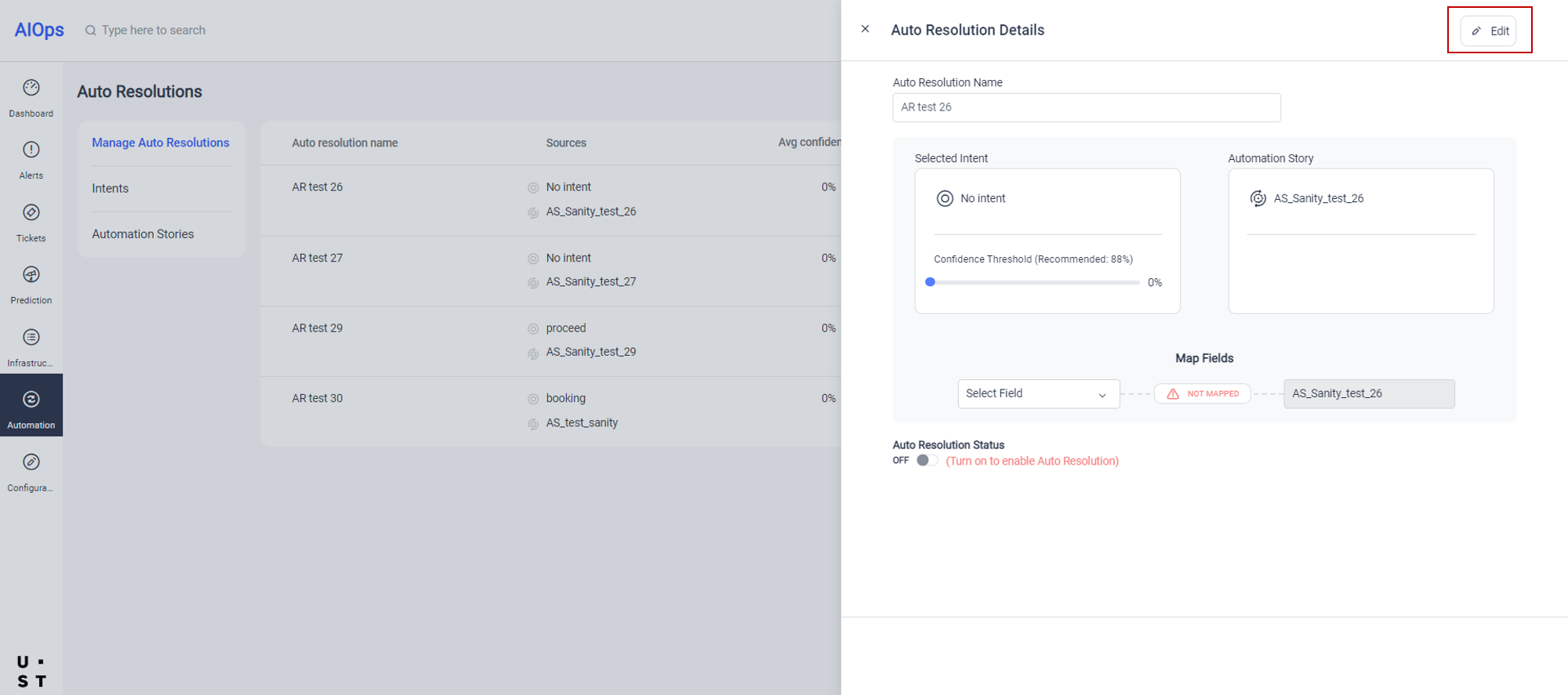
All the configured details will be displayed. User can edit the details by selecting Edit button.
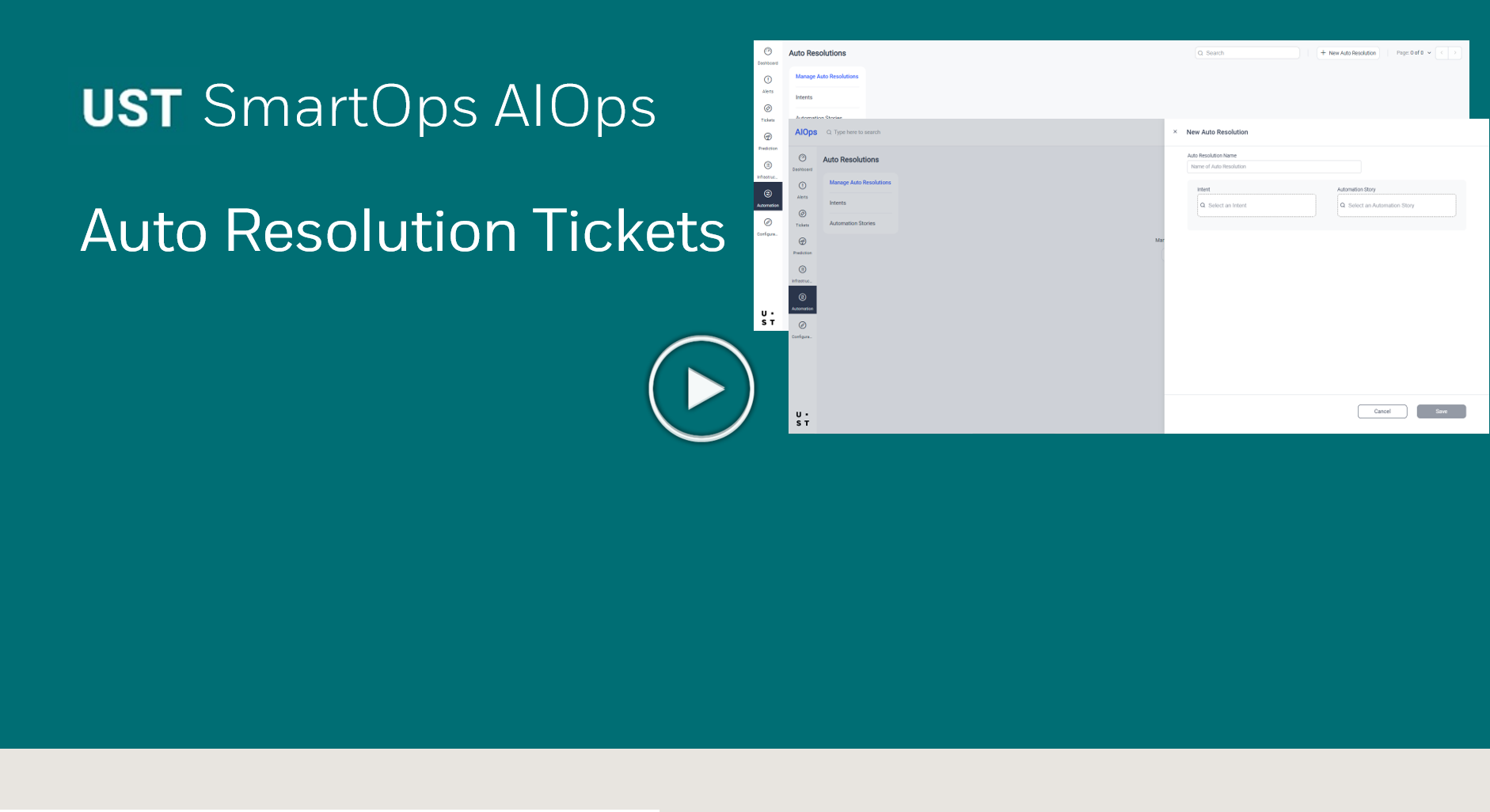
Click on the video thumbnail below to watch a brief overview.
Copyright © 2025 UST . All Rights Reserved.