 Pattern Mining
AIOps Pattern Mining feature is an AI capability that mines through alert history to identify alert patterns. These patterns will typically reflect derived associations such as topology, from the historic patterns of alerts. These patterns can then be used to augment alert correlation.
In addition to the chosen correlation method (hybrid/similarity), admins can now enable pattern-based correlation. The pattern-based correlation will be used if no correlation is suggested by base correlation method or if there is an ambiguity in correlation
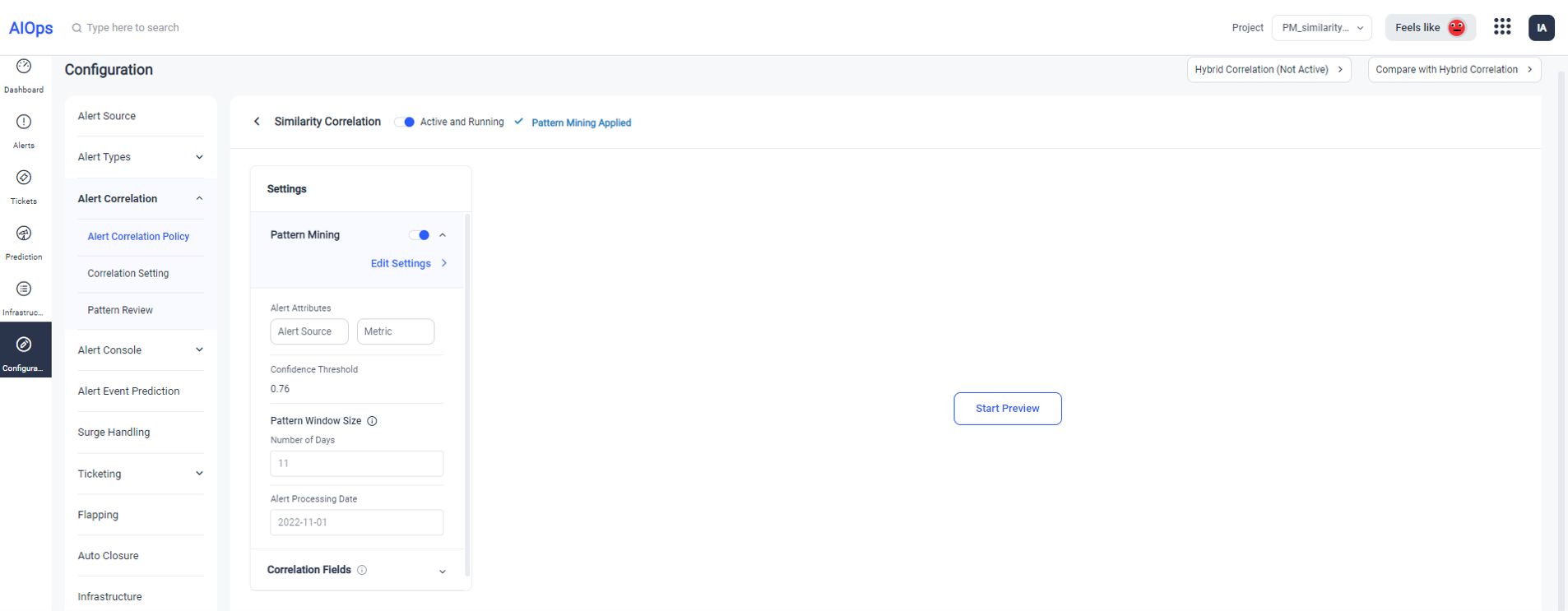
Setting up Pattern Mining
Pattern mining can be set up to augment Hybrid and Similarity correlation. The settings required are below-
- Alert attributes - alert attributes based on which patterns will be mined. Alert resource name and Alert metric are good choices which might typically unearth patterns.
- Confidence Threshold - Minimum confidence for a mined pattern to be considered for pattern based correlation.
- Pattern Window size - This is used to determine the number of past alerts within which patterns will be mined. Admins can opt for a window based on number of alerts or days.
-
- Number of alerts - Number of past alerts to be used for pattern creation
- Number of days - Number of past days to be used for pattern creation, without considering the number of alerts in those days
- Alert Processing Date - Date considered for pattern creation and alert correlation preview
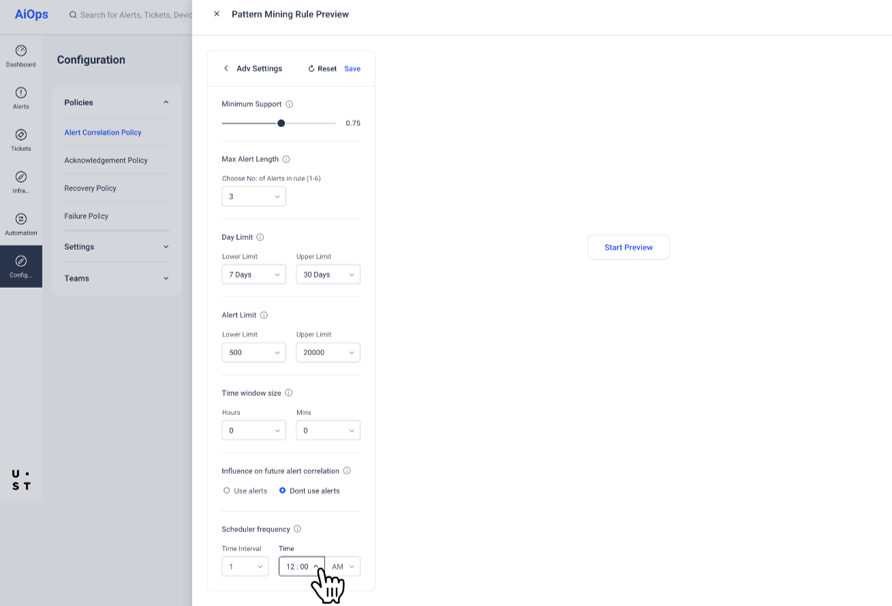
Advanced settings
Admins can edit advanced settings, which will impact the pattern mining algorithm and the thresholds in general settings.
Preview and Apply Pattern Mining Settings
An admin can preview the patterns and resulting correlation, before enabling pattern-based correlation.
The preview is a two-step process which uses historical data within AIOps to illustrate how this feature will impact alert correlation.
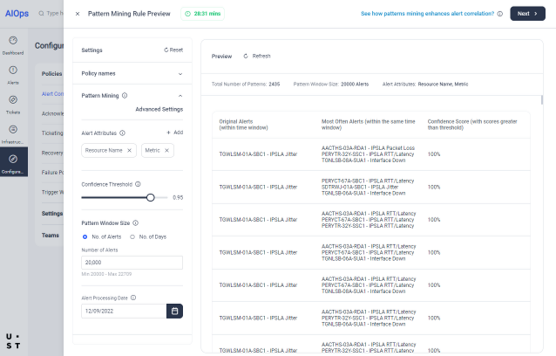
- Step 1 - Preview patterns generated based on current settings
- Step 2 - Preview alert correlation based on patterns generated
If the preview looks good, the admin can review the preview alerts which are correlated using patterns and provide feedback. With this, the settings will be completed, and pattern-based correlation can be enabled.
Preview patterns and correlation
Step 1 - Based on the pattern settings and selected processing date, alert patterns are generated for preview.
Step 2 - User can then proceed to preview pattern based correlation. In correlation preview, the most recent 100 alerts from the selected processing date are correlated using the patterns which were just now generated in previous step, along with the base correlation method (hybrid/similarity).
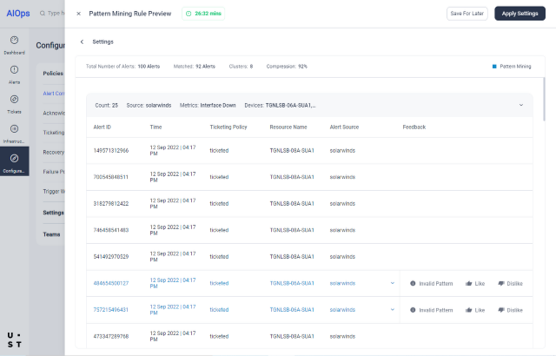
Users can review the correlation and compression ratios, tweak settings and refresh preview until desired results are achieved.
Visitors can preview patterns and the correlation using the already saved settings but cannot give feedback. However the 'Save for later' option to save settings & advanced settings is available only for admins.
It should be noted that only one user at a time can generate pattern previews. There is a 30 minute timer for each user session. It can be extended if needed.
Applying pattern based correlation after preview
Admins can apply the settings after providing feedback on all pattern correlated alerts in preview. This feedback is important to improve the performance of pattern based correlation.
Viewing pattern based correlation in alert clusters
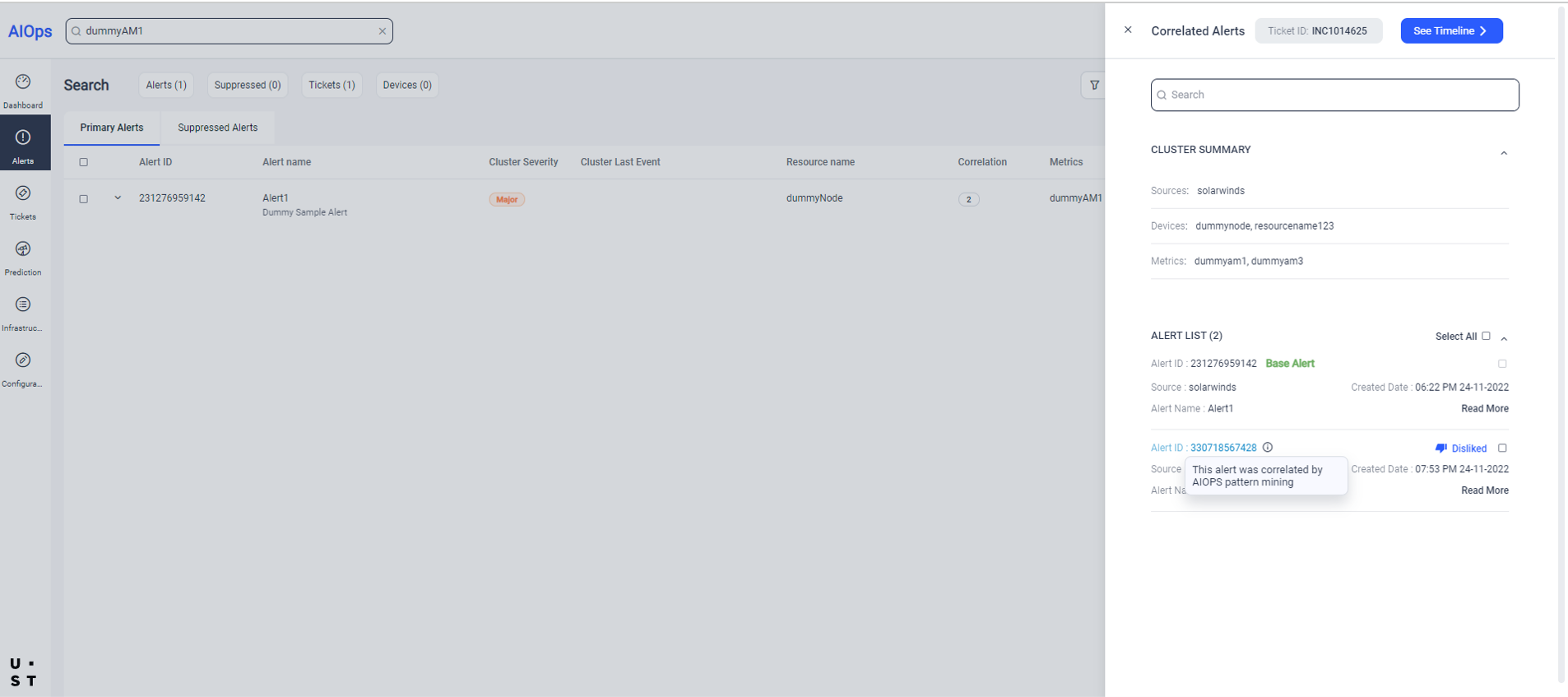
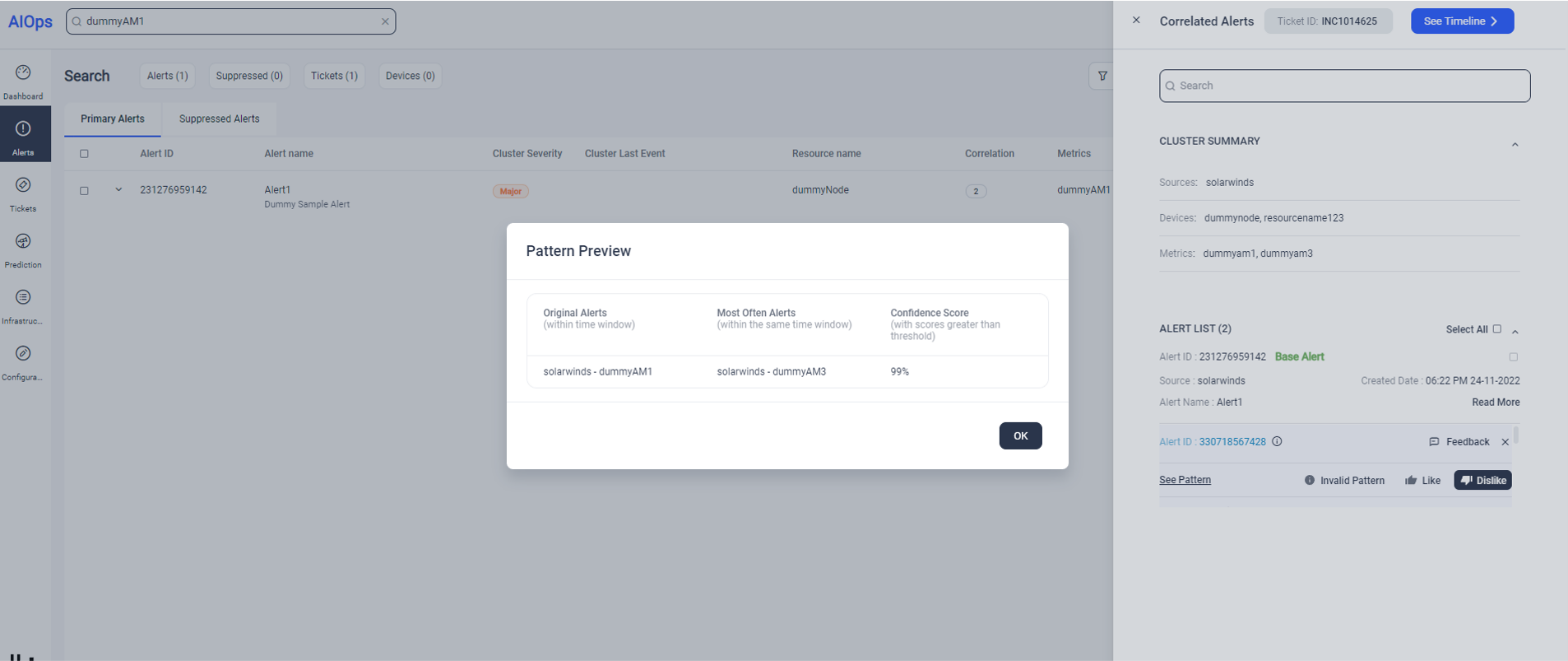
Users can preview the pattern used for the correlation.
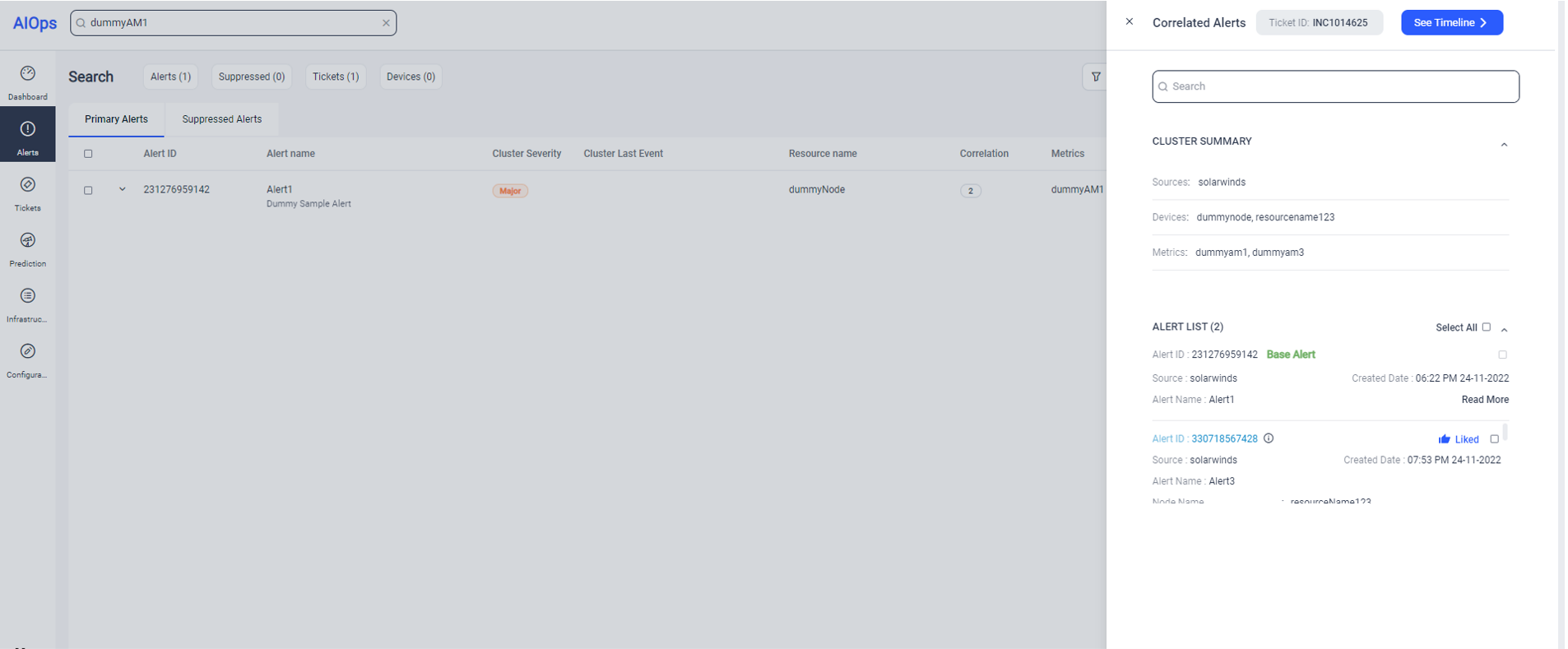
Users can provide their feedback as well.
FAQs
When will pattern based correlation be available for preview and correlation for the first time?
Every project has a default alertWindowSize in either “alerts” or “days”. After the criteria is satisfied in the project, pattern-based correlation will be available for use from the first day having 100 or more alerts.
For example, by default, alertWindowSizeCriteria = “alerts” and alertWindowSize=20,000. Let us consider the following be the alert flow into the project:
|
Date |
No. of alerts |
Total no. of alerts in project |
|
1/7/22 |
0 |
0 |
|
2/7/22 |
10,000 |
10,000 |
|
3/7/22 |
5,000 |
15,000 |
|
4/7/22 |
10,000 |
25,000 |
|
5/7/22 |
8,000 |
33,000 |
According to the above example, no. of alerts crosses 20k on 4/7/22 and 5/7/22 has more than 100 alerts, so it will be the first day that pattern-based correlation is available.
Now consider, if alertWindowSizeCriteria = “days” and alertWindowSize=2 - Before 4/7/22 we have had 2 days since the first day alerts are available in the project and 4/7/22 has more than 100 alerts. So 4/7/22 onwards, pattern-based correlation will be available. Please note that if no. of days is chosen, it doesn’t matter how many alerts come in on those days, it could even be no alerts.
Why are the results in preview and alert listing page correlation not matching?
- The clusters formed in the case of preview are using the 100 latest alerts for the given processing date. However, in the case of the alert listing page, the clusters formed using the 20k+ alerts (prerequisite, by default, for pattern-based correlation to be turned on) and the other alerts inserted.
- Patterns get created for alert listing page correlation when we click on "Apply Settings" (immediately) and according to the scheduler configured. As soon as the "Apply Settings" is clicked, pattern creation starts but it takes a few minutes for the collection to get created and only after that the pattern-based correlation kicks in.
Because of one or more of these reasons, this behaviour could be possible.
Pattern Maintenance by Admin
Patterns which have received feedback either during preview or live correlation, after the previous admin review will be available in this section. Based on the feedback given, increase confidence, decrease confidence of the pattern or remove pattern from the pattern store. This needs to be applied for the existing patterns, patterns created based on scheduler configuration and pattern created during preview.
'Pattern Maintenance' page will have 3 sections.
'To Review'
'Reviewed'
'Bookmark'
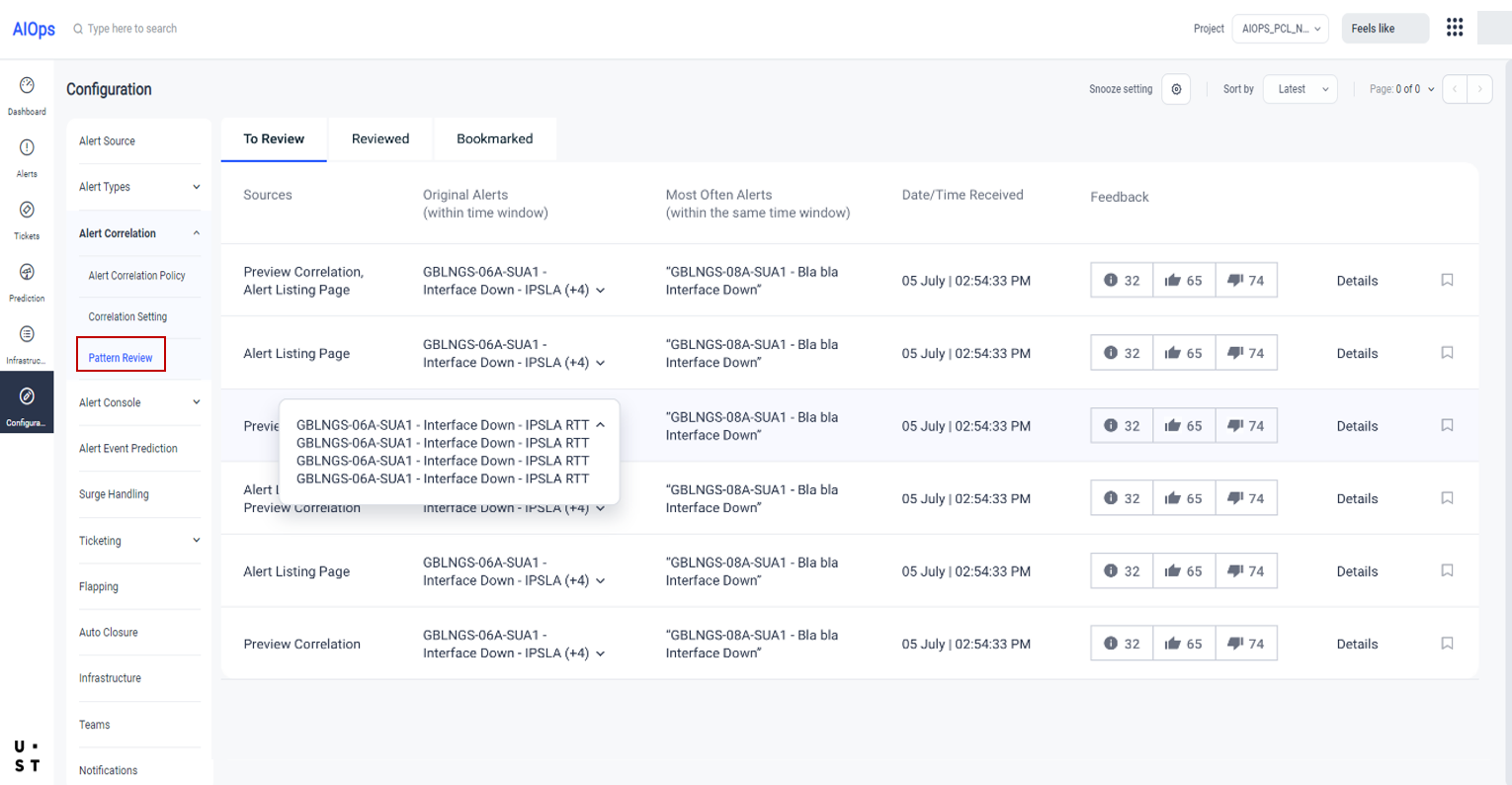
To Review
This section will contain the list of patterns that received the feedback during the preview, live correlation after the previous admin review & feedback received in the alert listing page. Admin can provide their final feedback decision after evaluating the previous decisions.
Confirmation Popup
In the admin review page, when admin gives feedback against each pattern a confirmation popup will be shown for all the selections to reconfirm the selection made by the admin. Having this check will ensure accurate decisions are made against each of the patterns.
Reviewed
This section holds the list of patterns that are already been reviewed but yet to be submitted. Patterns that receive final feedback by admin will be moved from 'To Review' to 'Reviewed' state. Here in the page, admin can relook all the results captured against the patterns and hit on the submit. Admin can also edit the feedback if there is any change in the decision in this page.
Bookmark
Patterns can be bookmarked in To Review tab, Pattern Review Details pop up and Reviewed tab. Bookmarked patterns can be viewed in Bookmarked tab. Patterns which are yet to be reviewed or already reviewed will be available in this tab. The feedback, snooze settings of these patterns can be added/changed here (similar to the To Review, Reviewed tabs and Pattern review details pop up).
How to snooze the pattern review
Admin may choose to snooze review of one or more patterns for a given period of time. The overall settings of snooze settings will be applied to all the pattern feedback given by the admin after the settings have been chosen. The overall snooze review settings can be overridden at the pattern level in two ways
1. When confirmation pops up for feedback submission
2. In the Reviewed tab.
When the snooze settings are applied for a pattern, the admin will not see the pattern in the To Review tab for the selected time period (1 month/6 month/forever). The feedback previously given by the admin for the pattern (if any) will be considered for that time period. When the admin accesses the To Review tab after the time period, he/she will be able to view the pattern in the To Review tab if any feedback has been received during preview or live correlation for that pattern.
The snooze review settings can be updated from the Reviewed tab and Bookmarked tab (if bookmarked).
Copyright © 2025 UST . All Rights Reserved.