 Acknowledgement Policy

Acknowledgement (ACK) policies will be checked against each incoming alert event. The alert will be considered as ticket/ACK alert based on the properties of the latest merged event. If any one ACK alert in a cluster changes to ticket alert after alert event merge and de-duped alert state is not recovery (REC), then that alert will split from ACK cluster. The system will check for a cluster it can correlate with. If none is found, it will create a new ticket.
If nature of ticket alert changes to ACK depending on the latest merged alert event, there will be no change. The alert will continue to remain in the same cluster.
Acknowledgement Policy configuration screen enables the user to define the conditions based on which an alert is to be marked as an acknowledgement alert.
To define a new acknowledgement policy,
- Select Configuration tab in AIOps
- Select Acknowledgement Policy on the left pane by expanding Alert Types.
Acknowledgement Policy screen will appear displaying all the configured policies.
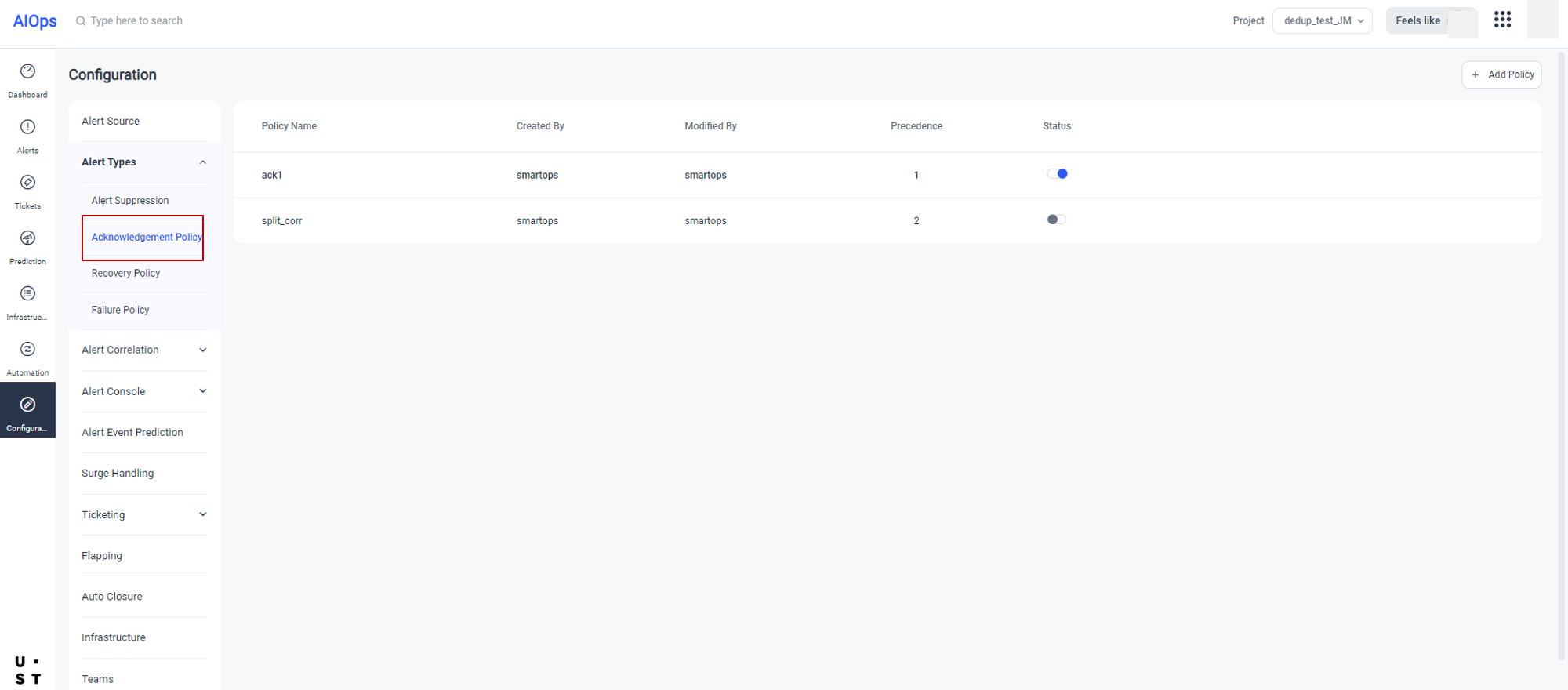
To add a new policy, click on  in the Acknowledgement policy Screen. Add Policy screen will appear as shown below.
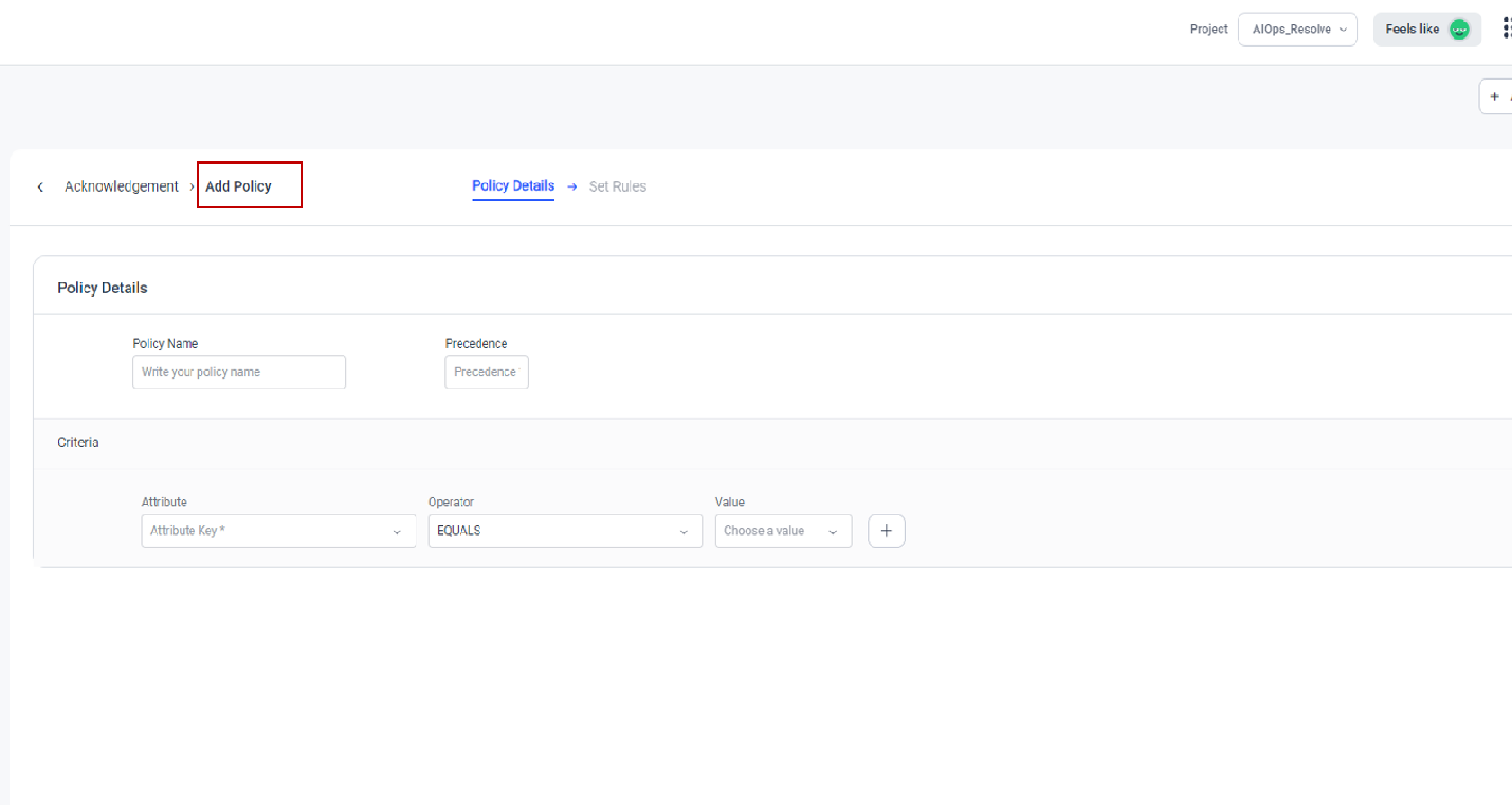
User can define the Acknowledgement Policy Details as explained below:
|
Description |
|
|
Policy Name |
This field allows you to enter the Policy Name. Policy name should be unique. If you enter a name which was used earlier, it will show an error message on saving. |
|
Precedence |
Precedence field allows you to set priority to the policies that you are adding. |
|
Attribute |
This field allows you to select the attribute that is to be mapped against a value to consider an alert as acknowledgement alert. You can select any of the available attributes from the dropdown. You can add multiple attributes against a single policy name by clicking the |
|
This field allows you to select the 0perator for mapping the selected attribute with value. |
|
|
Value |
This field allows you to either enter or select the value based on the attribute selected. |
 icon right to the value field.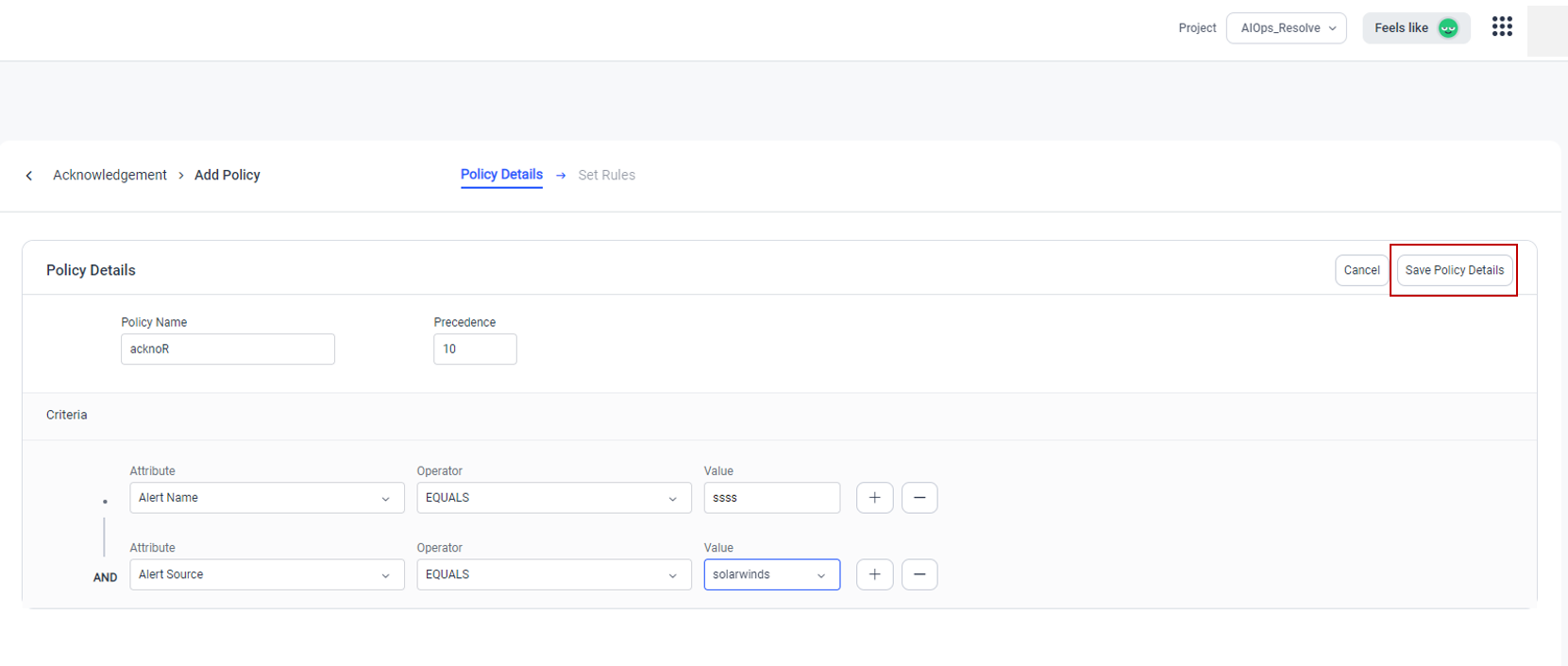
Click on Save Policy Details button.
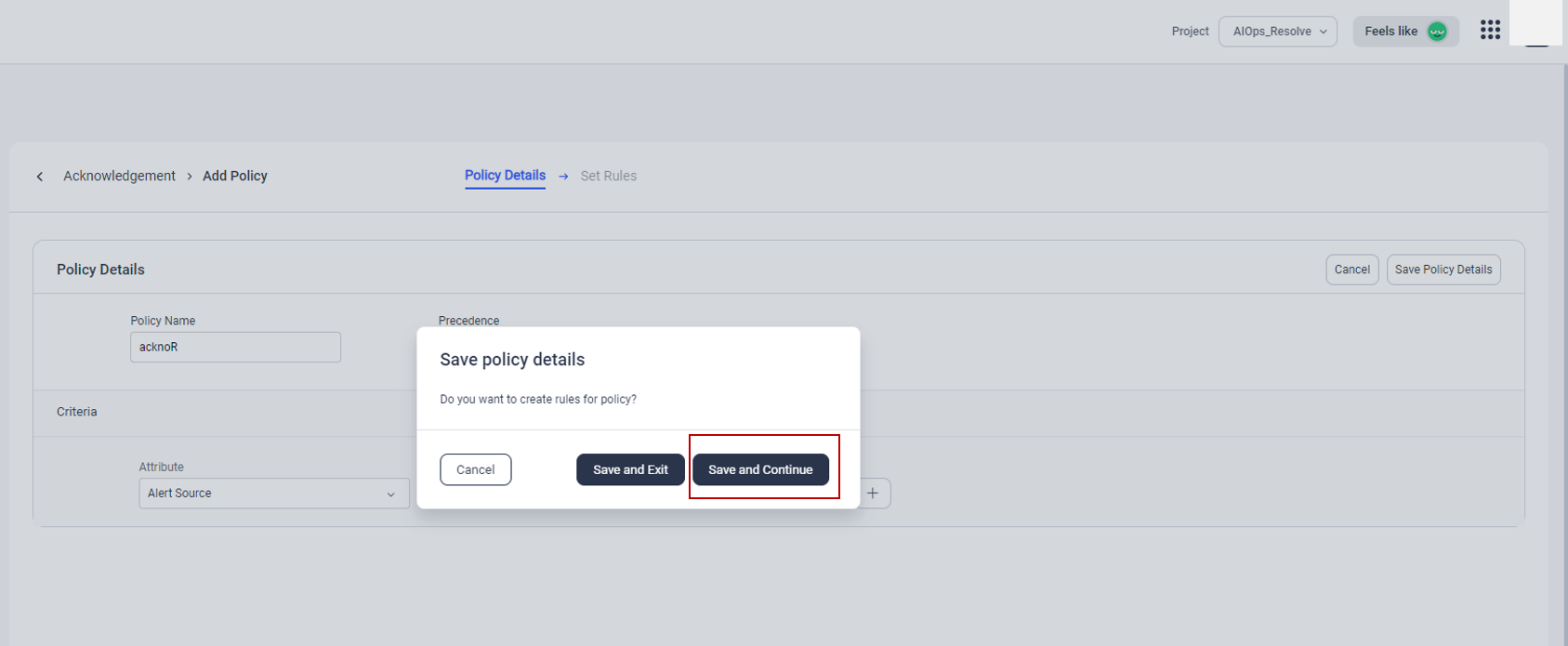
On selecting Save and Exit option from the popup, the created policy will get saved and listed in the Acknowledgement Policy listing screen. You can edit the policy from that screen later.
Click on Save and Continue button. Set Rules option will get enabled. You can set specific rules from this screen to further refine the corresponding policy.
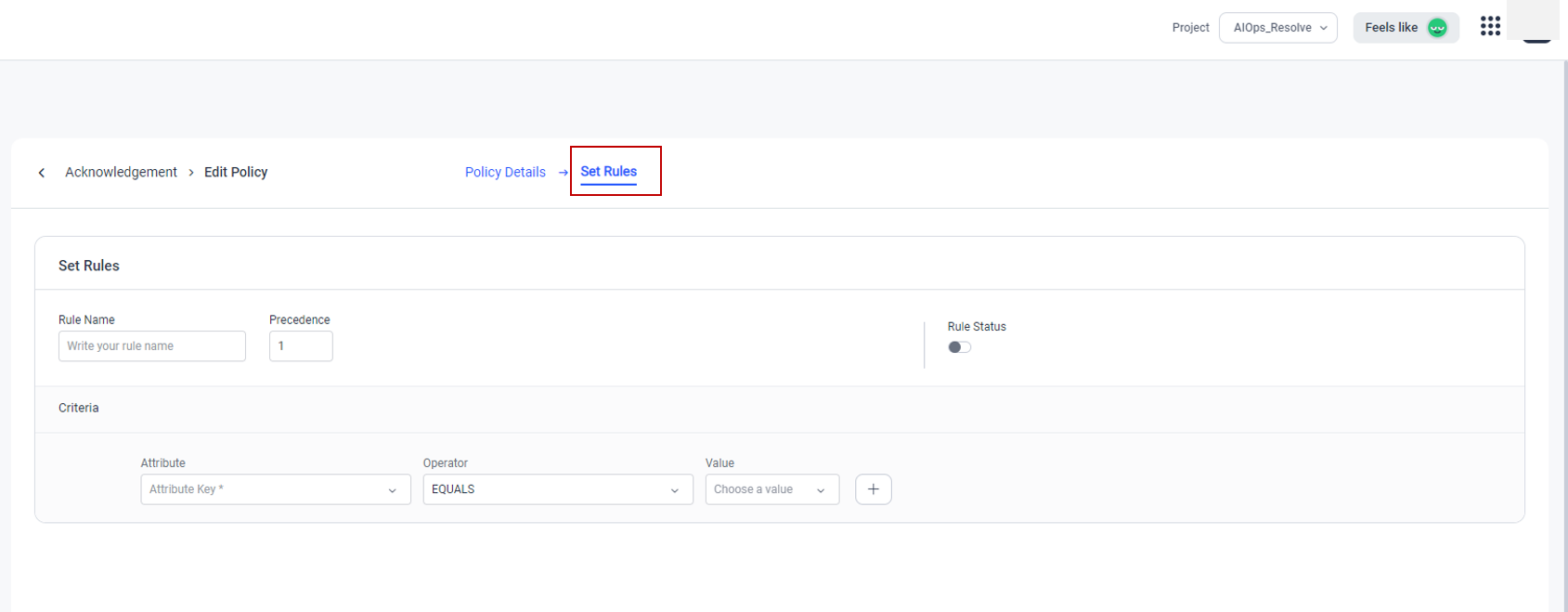
User can define rules for the Acknowledgement Policy as explained below:
|
Field Name |
Description |
|
Rule Name |
This field allows you to enter the Rule Name. Duplication of Rule Name within a policy will show an error message. |
|
Precedence |
Precedence field allows you to set priority to the created rules. Precedence will be given automatically to the rules on the chronological order of their creation. |
|
Rule Status |
This option allows the user to enable or disable the created rule. |
|
Attribute |
Attribute that is to be mapped against the created rule. You can select the attribute from the available list. Multiple attributes can be mapped against a single policy by clicking the |
|
Operator |
This field allows you to select the Operator for mapping the selected attribute with value. |
|
Value |
This field allows you to either enter or select the value based on the attribute selected. |
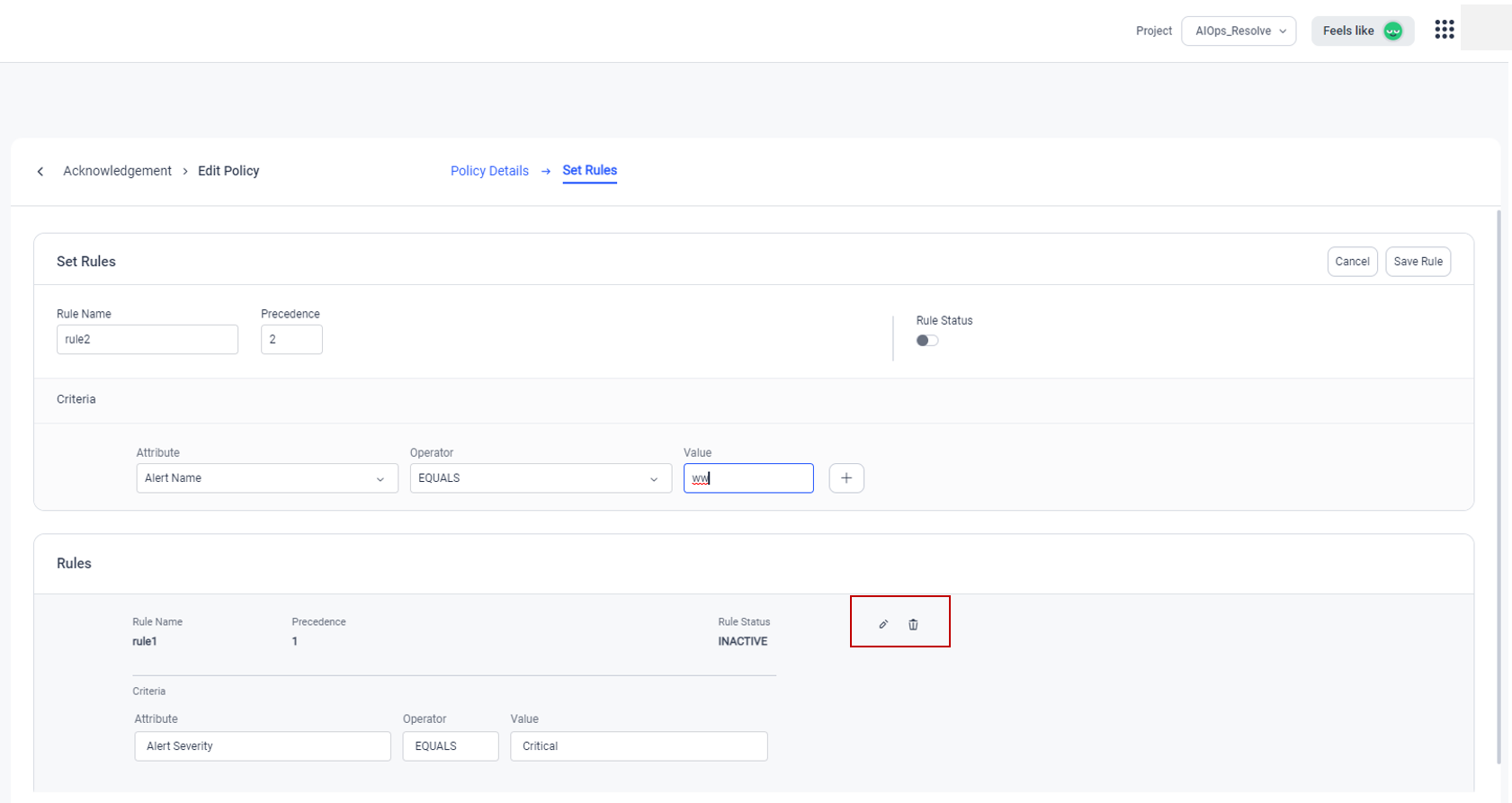
User can edit/delete any created rule by selecting the corresponding edit/delete option. User can activate or disable the rule with the Rule Status toggle button. Click on Save Rules button, the policy will get reflected on the Policy listing screen. Once all the rule settings are done, user can activate the policy by selecting the Status option from the Policy listing screen.
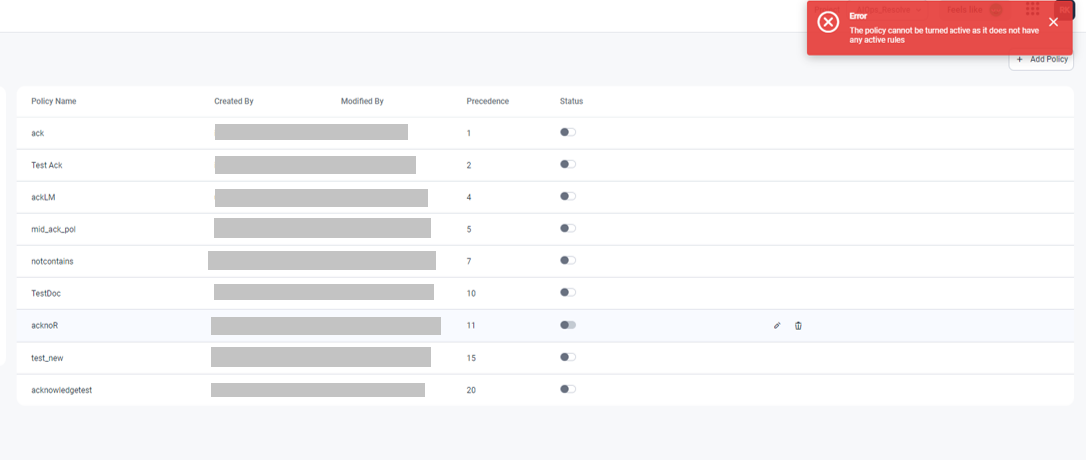
To activate a policy, at least one rule must be activated. Otherwise an error message will be displayed as shown below.
Copyright © 2025 UST . All Rights Reserved.